Getting started and survival
Sleep and check the season change
In the PC tutorial, face the bed, press E and choose the next-day option. Open the map to read the day and season after waking.
Sleep in a bed
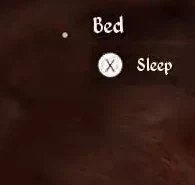
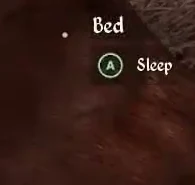
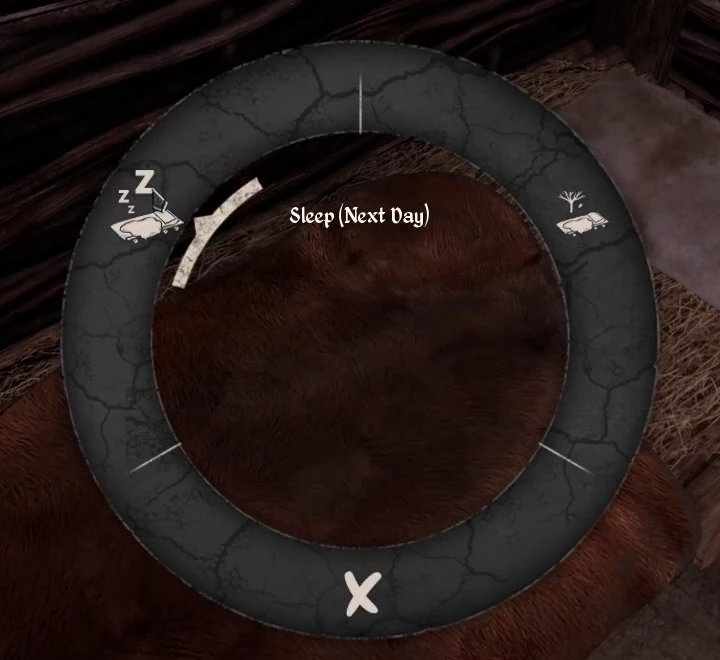
When the sleep prompt appears on the bed, use the displayed control to open the wheel. The keyboard tutorial shows E. The video selects “Sleep (Next Day)” on the left of the wheel and shows the player waking in daylight.
Open the sleep menu at the bed
| Tutorial | Control shown when facing the bed |
|---|---|
| PC | E |
| PlayStation | Cross (×) |
| Xbox | A |
Read the wait before the next season
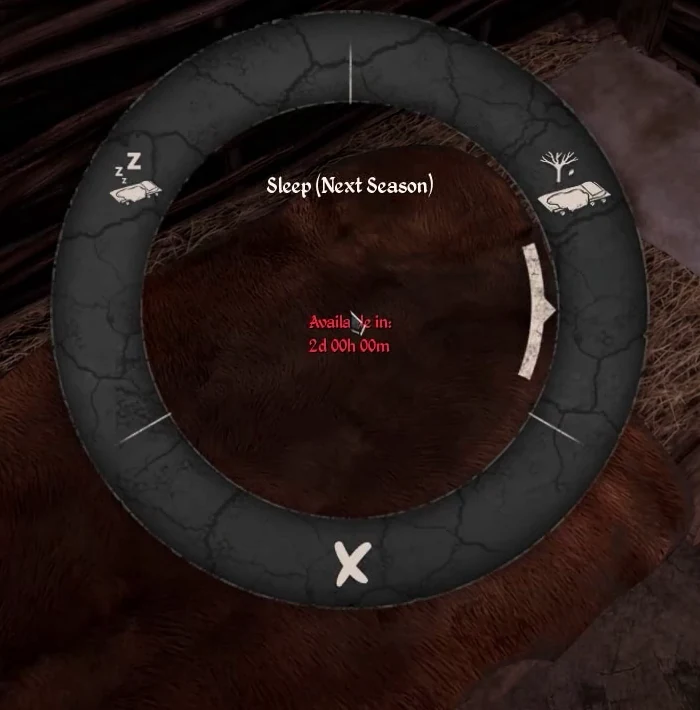
If your journal asks you to wait for the next season, look at “Sleep (Next Season)” in the bed menu. When it shows a red countdown, read the remaining time before the option becomes available. The PC tutorial shows “2d 00h 00m”, or 2 in-game days.
The default season length and the first day on which this option becomes available remain unverified.
Check the day and season
Read the day, time and season above the map. To see whether the season changed, compare its name before and after sleeping.
Prepare for a season change
| What to check | Guide |
|---|---|
| What you can sow and harvest this season | Crops and seasons |
| Firewood and warm clothing | Prepare for your first winter |
| Season length in your game | Game settings and co-op player options |
Furniture to check when the season changes
Check these campfires and the placed Snowman before relying on them next season. The table records the flag for each entry. The exact timing and conditions of removal remain to be verified in play.
| Furniture | Seasonal removal in the table |
|---|---|
 Simple Campfire | Enabled |
 Wooden Campfire | Enabled |
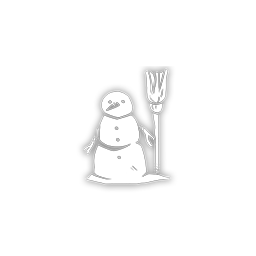 Snowman (ornament) | Enabled |
| Snowman (collectible) | Disabled |
See the option to sleep until the next day
Sources
Sources and version information at the end of this page
- Distributed sleep tutorials · bed control and PC next-season countdown · Steam build 26431490
- Distributed PC map tutorial · day, time and season above the map · Steam build 26431490
- Crop and seed tables · Steam PC 2.7.0.5
- Furniture, platforms, gates, linear structures, colours and patterns · Steam PC 2.7.0.5